

Back from a short hiatus as my MacBook Pro died on me recently. (Back up your stuff guys) Time to blog more about Presentation Design.
Many acquaintances have asked me recently : how do I make presentations look the way they do and is it the use of different slideware that makes the difference?
To which I would reply: “I only delve into slide software (PowerPoint/Keynote) after I’ve finalized the concept and design of the deck. All that’s left is to create it, the concepts are key.”
Most people tend to jump right into working on PowerPoint without carefully considering what they would be working on or about. As a result, their judgements are clouded by the array of features offered in slide-ware and they have to almost guess what their next slide would be. Most of the times, a substantial amount of time is wasted and deadlines are not met as a result. Worse still, the audience are unable to receive the best presentation that could have been given.
A good set of slides won’t magically make your talk great. But a great talk is really hurt by terrible slides.
To avoid this from happening every time we have to prepare a presentation ( 3 million presentations is given in a day worldwide ) , we have to re-look at our process to reach the result of a great presentation.
I want to introduce you guys over the next few blog posts, the process that I use ( and is touted by many professionals ) to attain a more structured approach to presentation design on PowerPoint or Keynote.
Stage One: Brain Storming
Why we should sketch on paper first
[dropcap1]W[/dropcap1]hy sketch? Because the pros said so! Garr Reynolds (author of Presentation Zen) recommends that people should  ‘go analogue’ and distance themselves from technology to get the creative juices flowing and embrace the freedom that a pen and paper provides. Nancy Duarte (author of Slide:ology) also advocates sketching before moving to slide-ware. Even with Graphic Design, designers are trained to start sketching and brainstorming before moving to the computer to render their graphics.
The majority however, are still reluctant to adopt the habit of sketching out ideas. The rationale is:Since such individuals whom are able to create visually astounding things sketch, the rest of us should at least try it out.
How to sketch?
The obvious answer would be to pick up a pencil, and scribble ( most sketches are illegible anyway). Don’t aim to produce a masterpiece in a sketch. ( Because we aren’t all Picassos’)
Step 1: Brainstorm
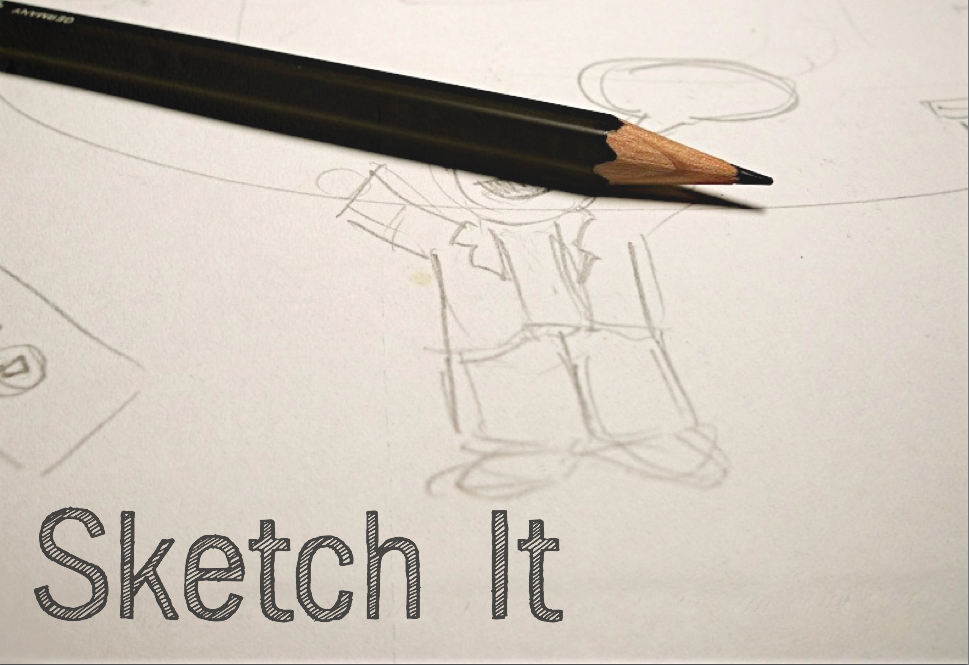
It Just Works!
This way, all the ideas on hand are fleshed out on paper and can be dissected accordingly ( just abstain from too much doodling). After attaining a substantial number of ideas from your sketches, it comes time to choose a few which you feel are strongest.
Step 2: Select Strongest Points

Remove Excess Information
From the ideas generated before, shortlist a few ideas that are the strongest and categorize them into larger areas. ( e.g. The Problem, The Solution, Features , etc.)
Your strong categories of points will then act as the skeleton of the presentation.
Step 3: Sign-Posting
Now that we’ve got our main points and ideas, we exercise a technique known as sign posting. Sign-Posting helps the audiences follow your PowerPoint presentation by having clear transitions at each point in your presentation. For example: When you transition from speaking about the Problem to Solution, there should be a Sign-Post slide.
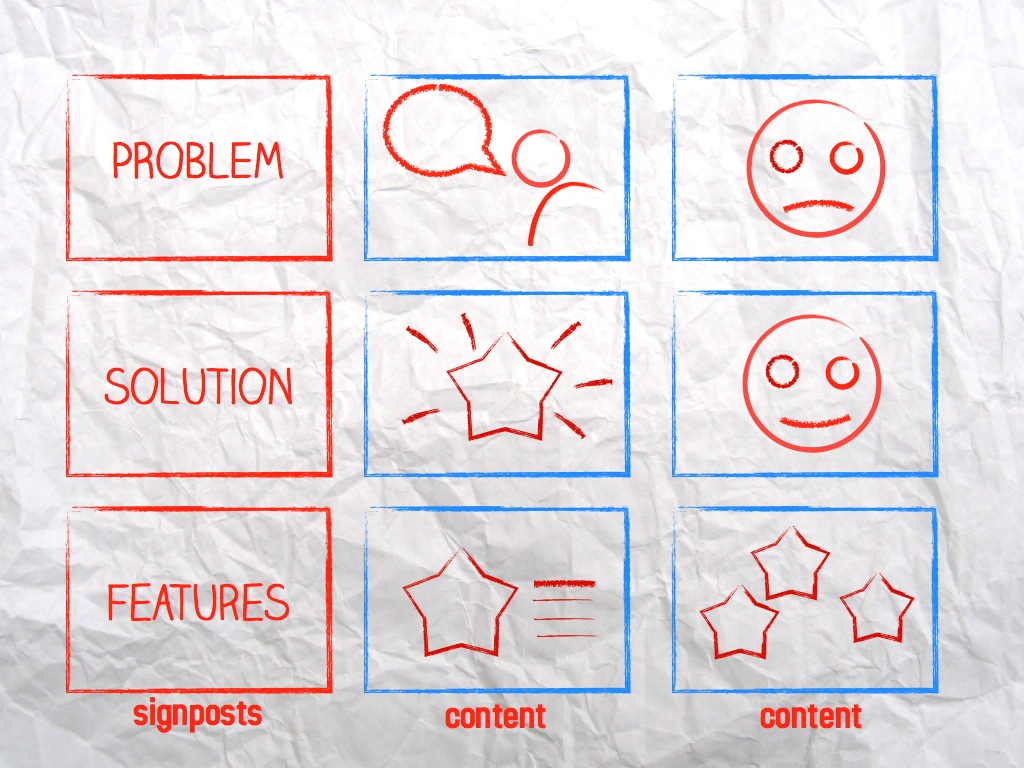
Show your star product
Step 4: Storyboarding & Presentation Design
Now we explore a technique that animators love to use, known as Storyboarding. Storyboarding is a spectacular way to organize your presentation as it offers you a bird’s-eye view of the PowerPoint as a whole, from start to finish. Using this technique , you can ensure your presentation possesses a logical flow that the audience can follow as well as highlight the main points of the presentation.
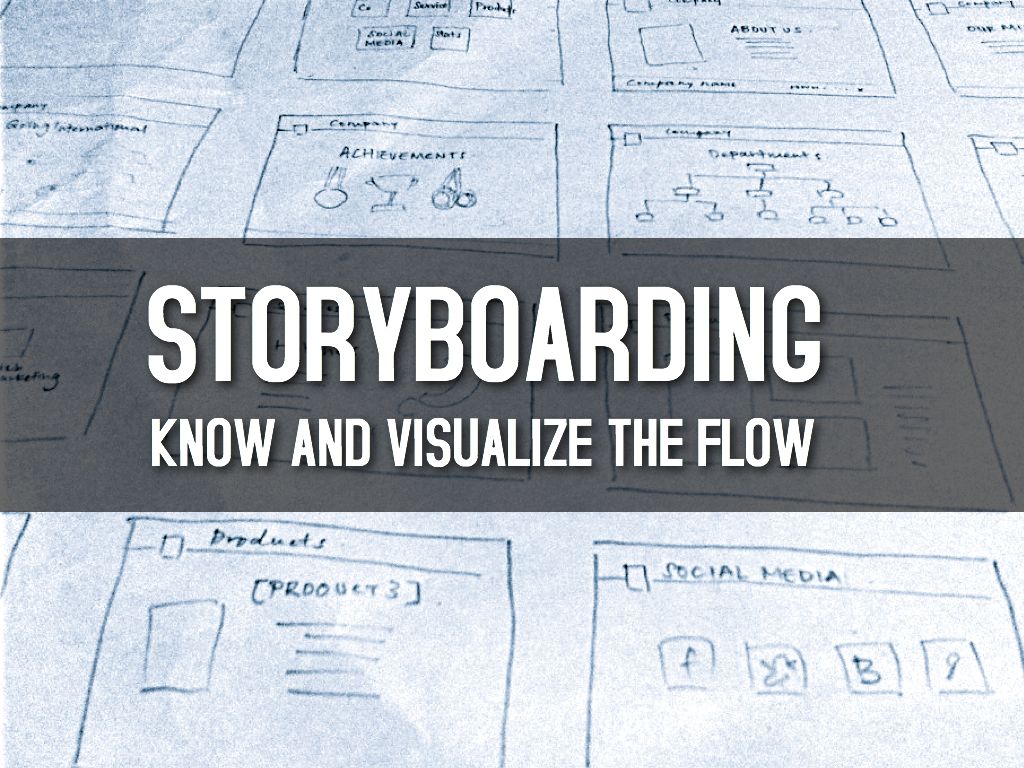
Mickey Mouse would be proud!
In each of your storyboard squares, sketch out the slide as you would like it to be on your slideware program. Rule of thumb: Use large text, consistent colors and interesting facts. It should be a cinch to materialize your thoughts on paper as compared to on PowerPoint or Keynote. Also, with a bird’s-eye view of the PowerPoint deck, your thoughts are able to flow more logically from the stand-point of an audience member. Pencil Sketching simply offers you the greatest freedom. After your storyboard is ‘done’, another round of stripping the excess and proof-reading would be required. ( anything the audience does not need should be mercilessly removed ) You should end up with a succinct and to-the-point presentation which gets your message across quickly and without excessive noise.
Step 5: Moving to Slideware (PowerPoint/Keynote)
Now comes the execution of all our hard work spent brainstorming and sketching : Putting it on PowerPoint. Sticking close to our sketchy concepts, the slideware execution becomes a lot easier.
Here’s an example:

Cover Slide Example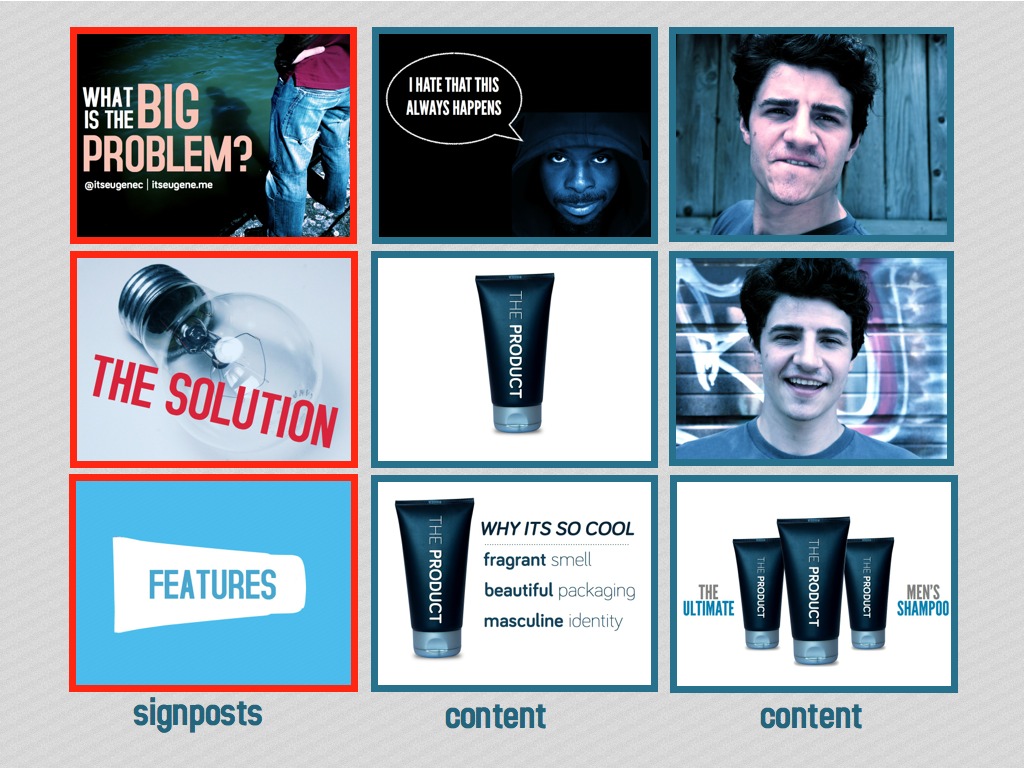 Execution Example
As seen, I have adhered to the initially sketched-out skeleton in the story-board to create a presentation that has clearer transitions ( sign-posts ) as well as content that fits their own categories in the PowerPoint. There is a logical flow present that the presenter or audience can easily follow. Furthermore, the slides have a consistent colour scheme ( different shades of teal and light-blue ) , large text and facts that gives the PowerPoint an interesting identity as a whole.
I do hope this process has proved to be some valuable advice and you enjoy it as much as I enjoyed writing it. Stay tuned for Stage Two!
Try it for your next presentation!
Merry Christmas & Happy Holidays!

Deck The Halls!
– Eugene

Thanks for the links! I had my students work on a cbolaolrative PowerPoint assignment, a Create Your Own Story. What with all the various flavors of PowerPoint that my students had, it was a nightmare to a) try to create an ‘in-class’ exercise that addressed all the different versions and b) get the students to share and collaborate on files. I was seriously considering abandoning the assignment as too impractical (even though the students liked it in spite of the difficulties), and one of these two tools might just provide the solution I need to making the project manageable!